Friday, 9 November 2012

Create your first Google Apps Script

Creating your first script might seem a little daunting, so if you're nervous you may want to check out the tutorial over at the Google Developers pages. Luckily you can opt to have some code given to you to start off with, so let's have a go.

I need to stop adding pictures of menus.
To open the Script editor just click on the tools menu and select Script Editor. The code that you write will be associated with the file that you're working on.

You'll see a dialogue box asking your what sort of script you're going to be writing. If you select the spreadsheet option you'll start with the following pre-populated code. Let's have a look at what the first function means.

The default Code from the "Spreadsheet" option contains two functions.

It's much easier to read text rather than pictures of text so from now on I'll be using embedded Gists from GitHub rather than screenshots. This makes it much easier for your to copy and paste snippets in to your own project - which, after all,  is what this site is all about.

In order to interact with out spreadsheet, the first hurdle is to work out how to tell GAS which cells we want to work with. The first 4 lines of the readRows function explain where to look for the data we want to use. Firstly we define the active sheet (the one associated with the script) and then we define a range which contains all the data on that sheet. Next we count how many rows there in that range - which can very useful if you need to perform an operation on the data received from each form submission. Finally, all the values in the range are stored in a two dimensional array.

The second part of the function is a simple JavaScript loop which logs the values in each row. The Logs which it generates can be viewed in View > Logs. This may not be terribly exciting yet - but we're making progress.

Set up a new Google Form

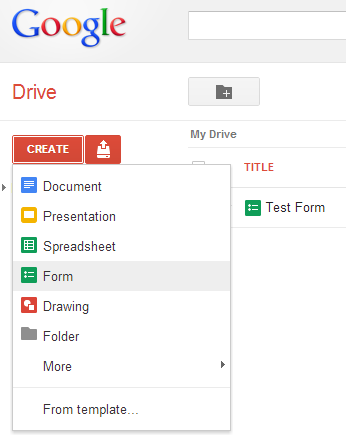
One of the major benefits of using Google Spreadsheets over Excel is that you can quickly and easily collect data from respondents all over the world using Google Forms. Let's set one up right now. Log in to Google Drive and click on Create and then Form. Note - Google is constantly tweaking the layout and design of it's services so don't be too put off if it doesn't look exactly the same as this when you get there!

I'm sure you could have found this anyway...
Now you have a template from which you can add questions and decide what sort of data each should collect. 

Points to bear in mind when setting up your form

  • Who will be responding? Make sure they understand what you want from them
  • Questions in which respondents choose an option mean that you know what the possible answers are going to be. This may be helpful when you're writing a script based on the results.
  • Open ended questions (Text or Paragraph Text) allow any text input. If you need a particular type of result like a date, email address or phone number it is impossible to stop users from entering invalid responses. You may need to address this in your script.


Setting up your form
I have set a up a test form which collects respondent's favourite colour and invites them to give a bit of an explanation. You can see the live form (and add your responses!) and the results.
How the form appears to respondents
Note that in the example above I have designated both questions as "Required" which means a user must provide some sort of answer to them in order to submit the form.

How responses appear on your Google Spreadsheet
Each responses is automatically recorded on to your spreadsheet with a timestamp. The spreadsheet is created at the same time as your form; all forms are attached to a spreadsheet which collects their responses.


Hello World

Welcome!

...welcome to my new little blog. If you've stumbled across this looking for something in particular then I hope that what you find will be of some use. Feel free to get in touch or leave a comment if something isn't clear or you have further questions - I can't promise that I'll know the answer but I'll try to help if I can.

What is this?

I started writing Visual Basic for Applications what seems like a very long time ago. relatively recently I realised that I needed to update my skill set as we seem to be headed for the clouds.

Thanks, Disney.
So, I set about teaching myself to achieve the same sort of things that I could with VBA and Excel with Google Spreadsheets and Google Apps Script. Of course, it wasn't long before I discovered I could do some new things too. 

How qualified are you to be dispensing this advice?

I'm really not qualified at all and I imagine that I'll make mistakes and hopefully improve as I go along. Let me know if you spot any glaring errors and I'll do my best to rectify them. Basically to help cement my learning, I'm going to try and document some of my helpful discoveries on this blog. I hope that you find some of it useful too. 

Can I use your code?

Yes,  absolutely! Please feel free to use any of the snippets you find here for any purpose you like. If you feel like this site has been helpful, I'd be grateful if you shared it or tweeted about it, any of that social stuff. I'm just starting out so if you want to help spread the word it would really help.

Where else can I get help?

Google Apps Script is well documented - this should be your first port of call for correct syntax for using Google services. With a background in Excel, I spent a long time reading about the Spreadsheet Services which you might find quite familiar.

Beyond the Google services, Google Apps Script (can we call it GAS from now on? OK, thank you!) is essentially JavaScript which is well documented all over the internet. If you need to brush up on the basics I would thoroughly recommend running through Codecademy's JavaScript Fundamentals Track which is a truly excellent resource. The Mozilla Developer Network also has some great resources, particularly if you are digging a bit deeper.